# macshot
**Repository Path**: mrerror/macshot
## Basic Information
- **Project Name**: macshot
- **Description**: Mac截图神器终于来了!开源免费macshot,玩转标注+录屏+OCR+滚动长图
https://mp.weixin.qq.com/s/doWqDtwXzyB-bDQZiCyaHQ
- **Primary Language**: Unknown
- **License**: GPL-3.0
- **Default Branch**: main
- **Homepage**: None
- **GVP Project**: No
## Statistics
- **Stars**: 0
- **Forks**: 0
- **Created**: 2026-04-27
- **Last Updated**: 2026-04-27
## Categories & Tags
**Categories**: Uncategorized
**Tags**: None
## README
# macshot

The most feature-rich open-source screenshot tool on macOS.
18+ annotation tools, screen recording with a full video editor, OCR + translation,
auto-redact PII, scroll capture, beautify — all native, all free.
Download · Changelog · Privacy


---
### Why macshot?
- **Capture & annotate in one flow** — select a region, draw arrows/text/shapes/blur, copy to clipboard. One hotkey, zero friction.
- **Screen recording with built-in editor** — record any area or full screen as MP4/GIF with system audio + microphone. Audio merge dialog with per-track volume control. Trim and export without leaving the app.
- **Scroll capture** — select a region and scroll. macshot stitches it into one seamless tall (or wide) image automatically.
- **Upload anywhere** — one-click upload to Google Drive, imgbb, or any S3-compatible service (Cloudflare R2, AWS S3, MinIO, etc.). Link copied to clipboard instantly.
- **Lightweight & native** — ~8 MB memory at idle. Lives in your menu bar. Built with Swift and AppKit, not a web browser in disguise.
- **40 languages** — English, 中文, 日本語, 한국어, Deutsch, Français, Español, Italiano, Português, العربية, हिन्दी, and 29 more. Auto-detects your system language.
---
## Install
**Homebrew:**
```bash
brew install --cask macshot
```
**Manual:** Download the latest `.dmg` from [Releases](https://github.com/sw33tLie/macshot/releases), open it, drag to `/Applications`.
---
## Quick Start
1. Launch macshot — it appears in your menu bar
2. Press `Cmd+Shift+X` to capture
3. Drag to select, annotate with the toolbar, press `Cmd+C` to copy
4. Press `Esc` to cancel
---
All Features
### Capture
- **Instant capture** — global hotkey freezes your screen, select any region
- **Window snap** — hover over a window and click to capture it exactly; `Tab` toggles snap, `F` for full screen
- **Scroll capture** — auto-detects vertical or horizontal scrolling, stitches with Apple Vision, live preview panel beside the capture region
- **Capture delay** — 3/5/10/30 second countdown before capture, set via menu bar. Escape to cancel.
- **Multi-monitor** — captures all screens simultaneously; drag a selection across screens for a stitched image
- **Quick save** — `Cmd+Shift+S` to select and save/copy instantly without annotation. Enter key also saves/copies based on preference.
- **Quick OCR** — `Cmd+Shift+T` to select and extract text instantly
### Annotation Tools
- **Arrow** — 5 styles: single, thick/banner, double, open, tail; flip direction toggle; right-click to add anchor points for complex curves
- **Shapes** — rectangle and ellipse with 3 fill modes (stroke, stroke+fill, fill), corner radius slider
- **Text** — rich formatting (bold/italic/underline/strikethrough), resizable text box, left/center/right alignment, background fill & outline colors, click to re-edit
- **Pencil & Marker** — freeform drawing with optional smoothing; smart marker mode snaps to text lines via OCR
- **Numbered markers** — auto-incrementing (1/I/A/a formats), with optional pointer cone
- **Stamp / Emoji** — 21 quick emojis, 100+ in categorized picker, or load any image
- **Censor (Pixelate / Blur / Solid / Erase)** — unified redaction tool with 4 modes: pixelate, Gaussian blur, solid color fill, or smart erase that samples surrounding colors for invisible content removal. Auto-redact PII (emails, phones, credit cards, SSNs, API keys), auto-detect faces and people, or draw in "Text Only" mode to censor just the text in a region
- **Measure** — pixel ruler with px/pt toggle; hold `1` or `2` for auto-measure
- **Loupe** — 2x magnifier
- **Color sampler** — eyedropper to pick any color; right-click to copy hex; auto-saves to custom palette slots
- **Space to reposition** — hold Space while drawing to move the shape without changing its size
- **Rotation** — rotate shapes via handle, Shift for 90° snaps
- **Click-to-select** — click any annotation to select it, then edit properties (stroke, style, fill), drag to move, resize via handles, rotate, or delete — all without switching tools
### Screen Recording
- **MP4 (H.264)** up to 120fps or **GIF** (5/10/15fps)
- **System audio capture** — toggle on/off, excludes macshot's own sounds
- **Microphone recording** — record voice narration alongside screen capture (permission requested on first use)
- **Mouse click highlights** — visual ripple on clicks during recording
- **Selection border** — visible capture region outline during recording
- **Menu bar stop button** — stop recording from the menu bar icon (appears even if icon is hidden)
- **Quick settings popover** — change format, FPS, and post-recording action on the fly without opening Preferences
- **Video editor** — trim timeline, mute/strip audio, play/pause, save (with Save As), upload, reveal in Finder
### Output & Upload
- **Formats** — PNG, JPEG, HEIC, WebP with quality slider
- **Google Drive** — sign in once, uploads to a private "macshot" folder
- **imgbb** — anonymous image hosting with shareable links
- **S3-compatible** — upload to Cloudflare R2, AWS S3, MinIO, DigitalOcean Spaces, Backblaze B2, etc.
- **Retina downscale** — optional 1x export for smaller files
- **sRGB color profile** — optional embedding for cross-display consistency
### Editor Window
- Standalone resizable window with full annotation tools, beautify preview
- **Add Capture** — capture additional screen regions and compose them into a single image, drag to reposition
- Crop (with rule-of-thirds grid), flip H/V, zoom 0.1x–8x
- Top bar with pixel dimensions, zoom dropdown (presets, fit canvas, zoom in/out)
### Beautify
- macOS window frame with traffic lights, shadow, and gradient background
- 30 gradient styles including 7 mesh gradients (macOS 15+), adjustable padding/corner radius/shadow
### Image Effects (Adjust)
- Non-destructive CIFilter adjustments: Brightness, Contrast, Saturation, Sharpness
- 8 presets: Noir, Mono, Sepia, Chrome, Fade, Instant, Vivid
- Works independently or combined with Beautify
- Live preview in the overlay
### Other
- **OCR** — extract text with Apple Vision (auto-detects all languages on macOS 13+), auto-copy to clipboard, translate to 30+ languages, Google AI Search
- **Invert colors** — one-click color inversion, apply twice to revert
- **Background removal** — Apple Vision foreground mask (macOS 14+)
- **Pin to screen** — floating always-on-top window
- **Floating thumbnail** — auto-dismiss preview with Copy/Save/Pin/Edit/Upload
- **Screenshot history with editable annotations** — menu bar submenu + drop-down history panel (`Cmd+Shift+H`). Re-open any capture in the editor with live annotations preserved — edit, then press Done to save back. Drag-and-drop, Quick Look, and right-click actions
- **QR & barcode detection** — inline Open/Copy actions
- **Snap alignment guides** — annotations snap to midlines and edges
- **Auto-updates** via Sparkle
- **~8 MB memory** at idle
Keyboard Shortcuts
**Global hotkeys** (configurable in Preferences)
| Shortcut | Action |
|---|---|
| `Cmd+Shift+X` | Capture Area |
| `Cmd+Shift+F` | Capture Full Screen |
| `Cmd+Shift+S` | Quick Capture (instant save) |
| `Cmd+Shift+T` | Capture OCR (instant text extraction) |
| `Cmd+Shift+R` | Record Area |
| `Cmd+Shift+H` | Show History Panel |
**General** (during capture)
| Shortcut | Action |
|---|---|
| `Enter` | Confirm (save or copy based on preference) |
| `Cmd+C` | Copy to clipboard |
| `Cmd+S` | Save to file |
| `Cmd+Z` / `Cmd+Shift+Z` | Undo / Redo |
| `Cmd+0` | Reset zoom to 1x |
| `Esc` | Cancel / close popover |
| `Delete` | Remove selected annotation |
| `Tab` | Toggle window snap mode |
| `F` | Capture full screen (snap mode) |
| `Shift` (while drawing) | Constrain to straight lines / perfect shapes |
| `Space` (while drawing) | Reposition shape without changing size |
| `Right-click` on line/arrow | Add anchor point for multi-point curves |
**Tool shortcuts** (active after selecting a region — customizable in Preferences > Shortcuts)
| Key | Tool |
|---|---|
| `A` | Arrow |
| `L` | Line |
| `P` | Pencil |
| `M` | Marker |
| `R` | Rectangle |
| `O` | Ellipse |
| `T` | Text |
| `N` | Number |
| `B` | Censor (Pixelate/Blur) |
| `I` | Color Sampler |
| `G` | Stamp / Emoji |
| `S` | Select & Edit |
| `E` | Open in Editor |
---
## Permissions
macshot requires **Screen Recording** permission. macOS will prompt you on first capture.
---
## Star History
[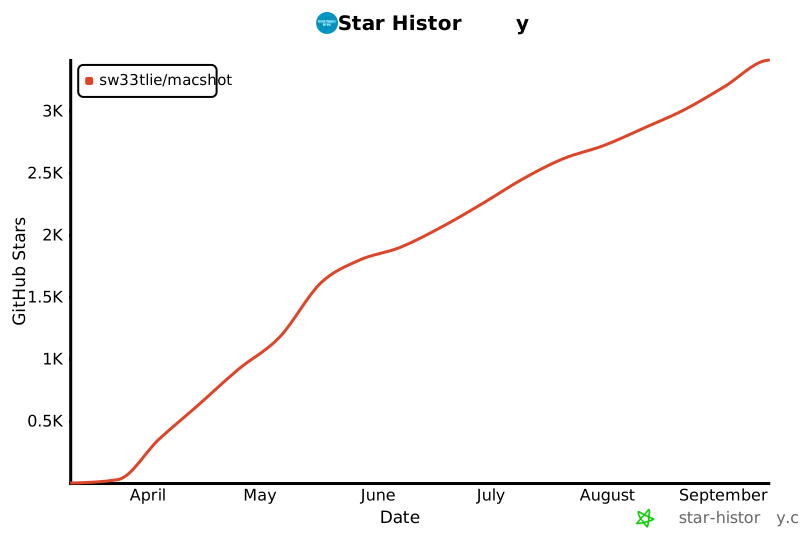](https://star-history.com/#sw33tLie/macshot&Date)
## Requirements
macOS 12.3 (Monterey) or later.
## License
[GPLv3](LICENSE)